Steamworks Documentation
Developer/Publisher Homepage Tools Update
Steamworks Documentation > Sales and Marketing > Events and Announcements Tools > creatorhome > Developer/Publisher Homepage Tools Update
The powerful sale-page editing tools that we've been developing for years is now available for customizing developer, publisher, and franchise homepages. With these tools, you have more control over how you organize and display your games. You can get super-detailed and manage every single game, or you can add sections to populate automatically with your latest releases, top sellers, or special offers.
https://www.youtube.com/watch?v=kjhqm6Y2CFY
Here is a breakdown of the default sections:
There are many powerful tools available to make this page yours. Here are just a few of the options:
Homepage Editor Tools Overview
https://www.youtube.com/watch?v=kjhqm6Y2CFY
To start using the new editor
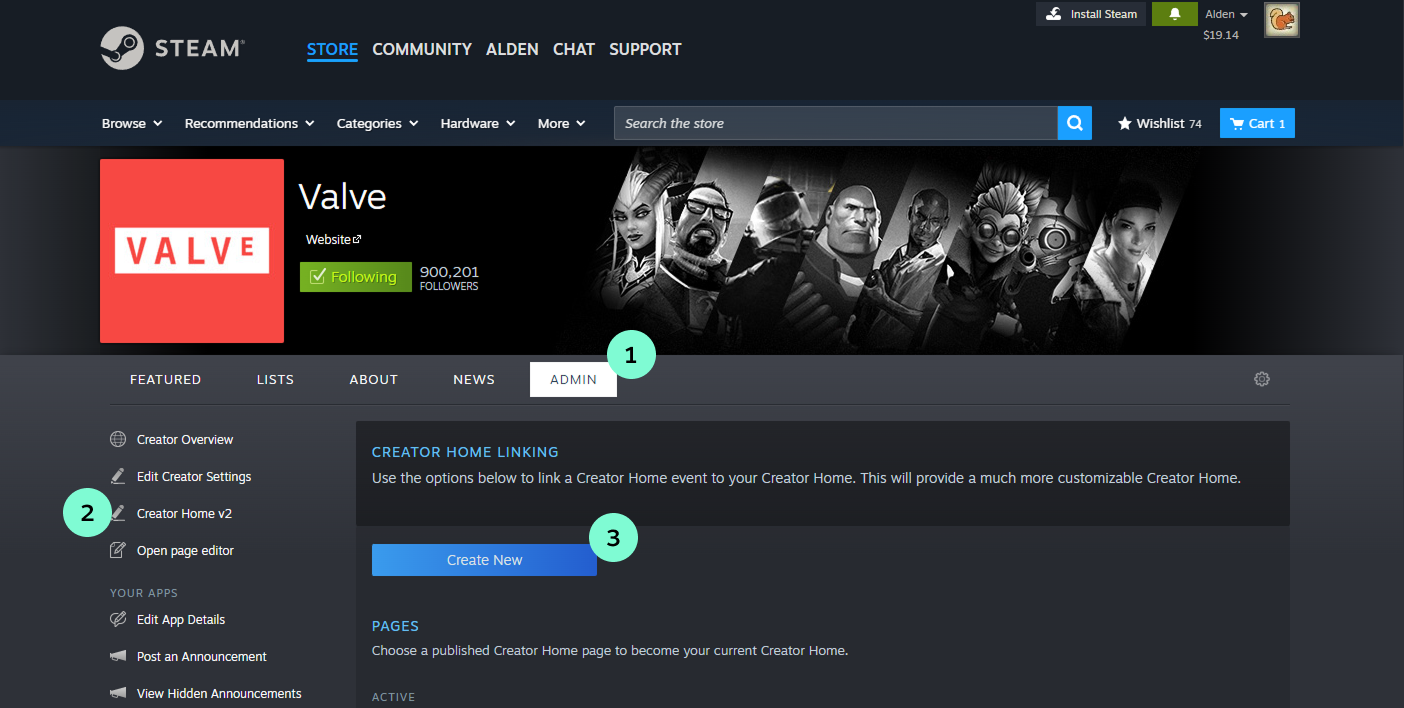
Visit your developer or publisher homepage and then the following:- Click the 'admin' tab.
- Select "Creator Home v2" on the left-hand side of admin options.
- Click "Create New" to set up a new homepage.
Configuring your page
Default configuration
We’ve created a default set of sections that will automatically display all of your linked games, dlc, demos, and soundtracks. Feel free to customize their appearance or add new sections if you wish to highlight individual games, sets of games, or other content (video, text, images) as appropriate. You can remove the default sections too, but we recommend keeping the “On your wishlist” and “Recommended For You” sections to help orient customers.Creating lists
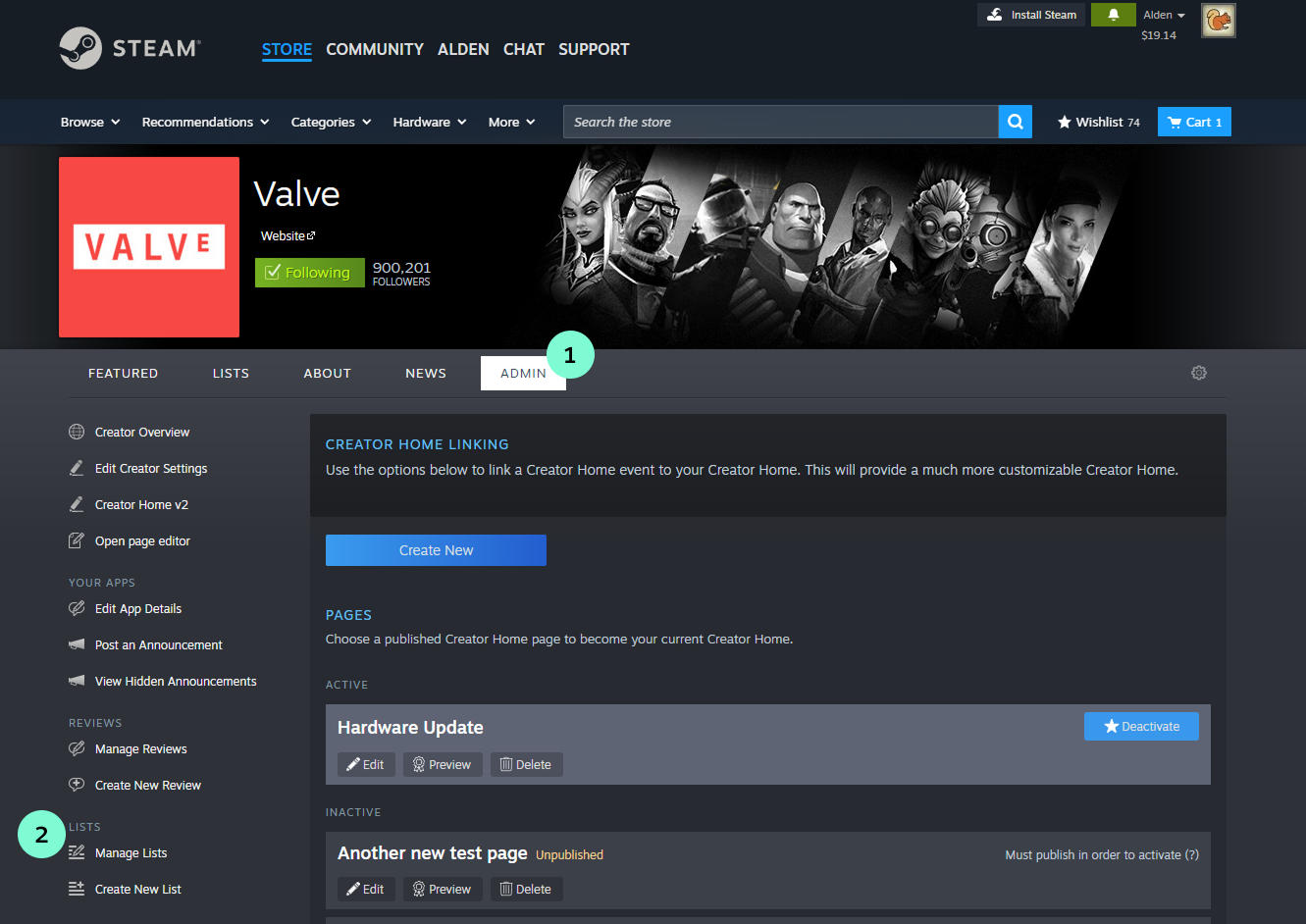
If you have a set of games that you want to group together and display as a set, you can do so by creating a list.- From your developer homepage, select the 'admin' tab
- Then click on one of the list options in the left-hand menu.
Previewing a new homepage
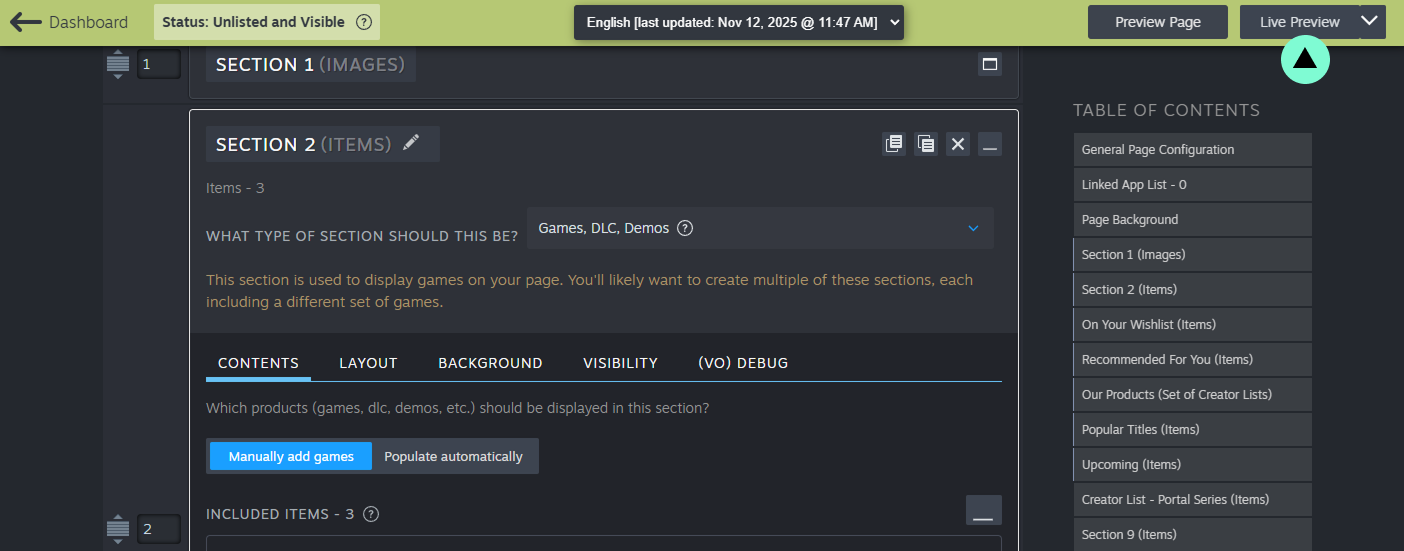
While using the editing tools, you can click 'live preview' in the upper-right corner of the editor to get a second window that shows your work in progress within the context of your homepage header. This should give you a pretty realistic representation of what your homepage will look like.Setting a new homepage live
Once you are happy with the layout of your new homepage, you'll need to do two things to set it live publicly:- Publish the individual homepage - Within the editor tools where you are configuring the sections, switch to the 'publish' tab and follow the directions to publish. This sets the content of your homepage to public so that it can be loaded in the Steam store.
- Set that homepage as active - Return to the main admin dashboard for your homepage, with 'creator home v2' selected in the left-hand set of options. You'll see your published homepage listed in a section called "Inactive". To set it active, click "Set as Active" button with a star next to it.
Default Sections
When you enter the new editor tools, you'll find a default configuration for your page ready to go. These are sections that we think are likely to be commonly used and useful in the most cases. These defaults also show you a bit about how the tools work. If you want, you can just hit save and then set your new page live with these defaults and you should have a pretty good page automatically.Here is a breakdown of the default sections:
- Popular Titles - The page starts off with a big trailer-focused section that automatically highlights your most popular titles.
- On wishlist - The next section on the page will show the visiting user any of your games that are on their wishlist. If no games match, then the section will not appear for that user. This is handy for giving the player context and making sure they know that they're already interested in your games.
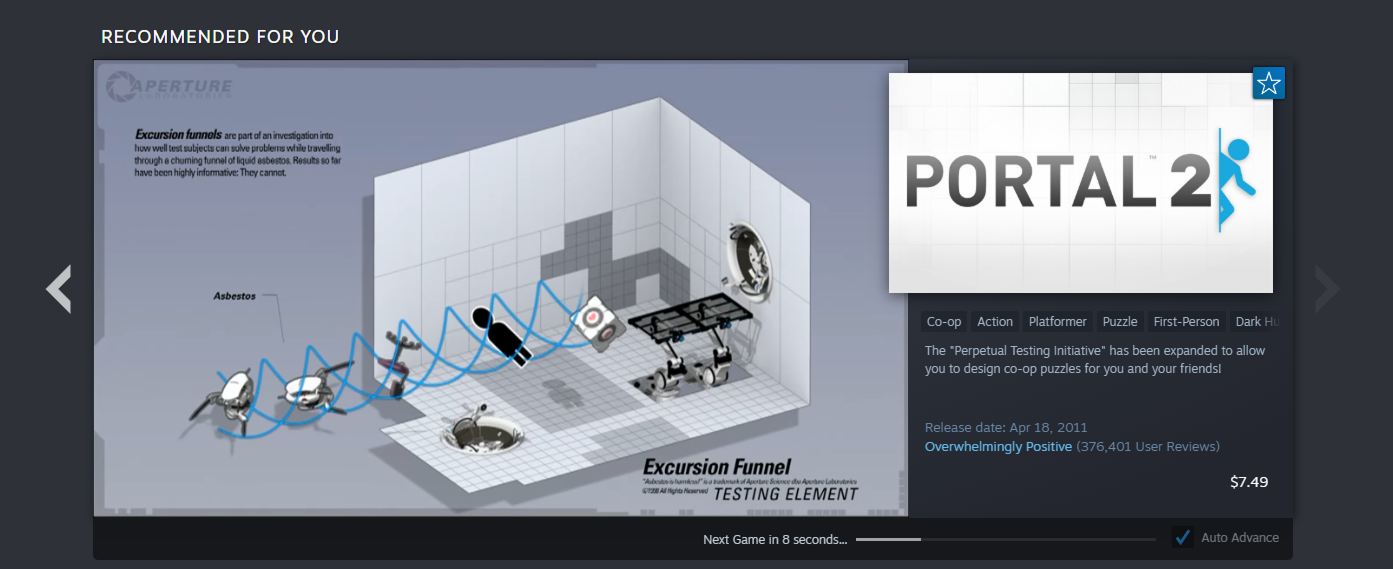
- Recommended - This section will show the visiting user any of your games that Steam recommends for them, based on the games they've been playing lately. This uses the store tags applied to your games, so it can include both released and upcoming games in the set of recommendations.
- Set of Creator Lists - If you had created any lists of games previously, we'll show them in this section automatically. You can also create new lists at any time by returning to your creator home dashboard.
- Current Specials - Automatically highlights any of your games that are running a discount.
- Latest Releases - Automatically shows off the newest things that your team has released on Steam.
- Upcoming Releases - Showcases your next upcoming releases.
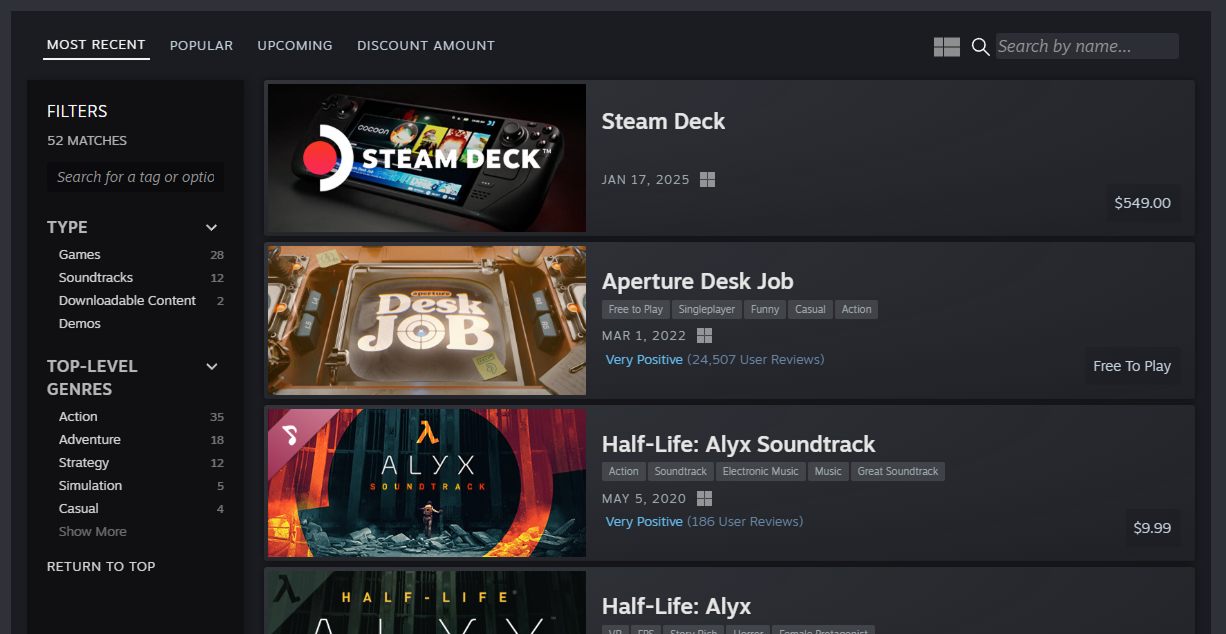
- Browse all - The bottom-most section on your page will always be a tabbed section that shows new releases, top sellers, and upcoming games, with options for users to filter down by relevant tags, features, and attributes.
Many ways to customize
There are many powerful tools available to make this page yours. Here are just a few of the options:
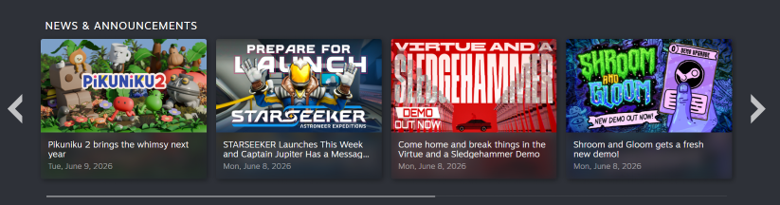
- News & Announcements - Display specifically chosen news and events on your page. (Note: You can change the settings to only show the newest events from the last X weeks.)
- Carousel or grid of games - The basic building blocks for showcasing games. Easily add a set of games, organized as a grid or carousel. You can populate the set of games by manually entering individual games, or have it populate automatically based on criteria or filters.

- Individual game details - Display an individual game, or a carousel of games, in detail with "Vertical Capsule Display"
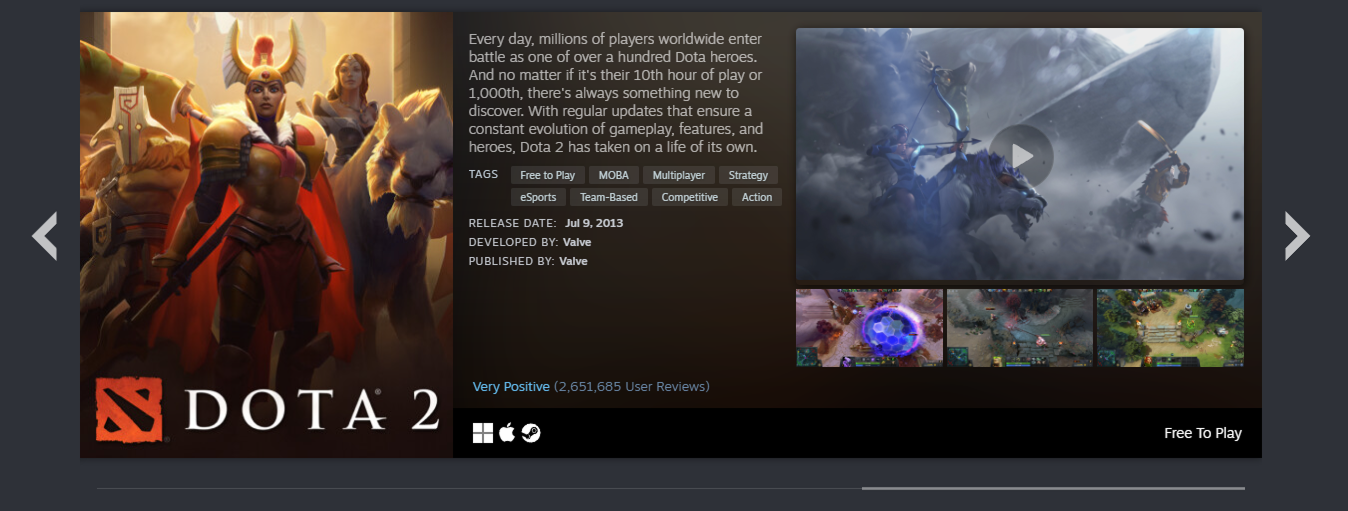
- Trailer carousel - A carousel that automatically scrolls through your set of games, showing off the trailers.
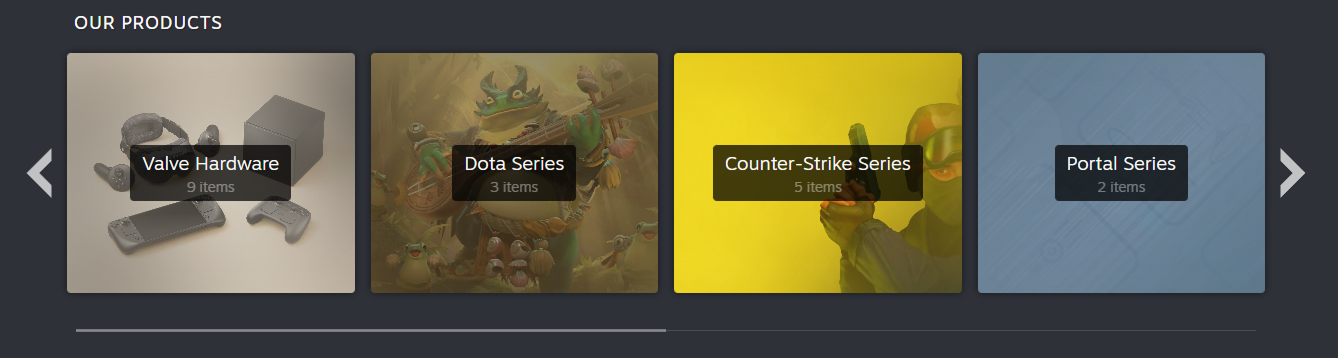
- Lists - You can create lists of games to organize and group games or content that goes together. Use them to organize franchises, series, or sets of DLC.
- Custom background artwork - You can style your entire page by uploading a custom background artwork. Or you can provide artwork in the background of each individual section.
- YouTube video embeds - Show off your latest trailer, or game update.
- Text and image blocks - Tell players more about your company, development team, or more about each featured game.
- Titles or title images - Break up your page with section titles to better highlight sets of games or different franchises.