Steamworks Documentation
- Documentation Home Page
- Getting Started
-
Store Presence
- Applications
- Coming Soon
- Developer And Publisher Homepages
- Early Access
- Explain Your Editions
- Franchise Pages
- Free To Play Games
- Graphical Assets - Overview
- Livestreaming
- Localization and Languages
- Pre-Purchasing on Steam
- Pricing
- Promo Event Tools, Rules, and Guidelines
- Release Dates
- Release Options
- Release Process
- Removing a product from Steam
- Review Process
- Roadmaps
- Season Passes
-
Steam China
- Steam Tags
- Store Page, Building and Editing
- Testing On Steam
- Top Sellers Lists
- Trailers
- Updating Your Game - Best Practices
- User Reviews
-
Features
- Anti-cheat and Game Bans
- Common Redistributables
- Enhanced Rich Presence
- Game Notifications
- Microtransactions (In-Game Purchases)
- Multiplayer
- Stats and Achievements
- Steam Audio
- Steam Cloud
- Steam Cloud Play (Beta)
- Steam Community
- Steam DRM
- Steam Error Reporting
- Steam Families
- Steam HTML Surface
-
Steam Input
- Action Manifest Files
- Action Set Layers
- Activators
- Browsing Configurations
- General Concepts
- Getting Started for Developers
- Getting Started for Players
- In-Game Actions File
- Input Source Modes
- Input Sources
- Legacy Mode Bindings
- Mode Shifting
- Mouse Regions
- Radial Menus
- Steam Input Devices
- Steam Input Gamepad Emulation - Best Practices
- Templates for In-Game Actions Files
- Touch Menus
- Uploading Steam Input Configs to Steam Workshop
- Steam Inventory Service
- Steam Keys
- Steam Leaderboards
- Steam Overlay
- Steam Playtest
- Steam Remote Play
- Steam Screenshots
- Steam Timelines
- Steam Voice
- Steam Workshop
- User Authentication and Ownership
- Virtual Reality
- Finance
-
Sales and Marketing
- Advertising on Steam
- Best Practices, Marketing
- Community Moderation
- Curators and Curator Connect
- Discounting
- Events and Announcements Tools
- Features And Tools, Marketing
- Followers
- Google Analytics
- Points Shop Items
- Profile Features
- Steam Branding Guidelines
- Steam Community Items
- Store and Platform Traffic Reporting
- Store Widget
-
Upcoming Steam Events
- Steam Next Fest
-
Steam Themed Sale Events
- Steam Auto Battler RPG Fest 2026
- Steam Couch Co-Op Fest 2027
- Steam Desktop Companion Fest 2027
- Steam Dinos vs. Robots Fest 2027
- Steam Fighting Fest 2027
- Steam Medieval Fest 2026
- Steam Mountaineering Fest 2027
- Steam Racing Fest 2027
- Steam Real-Time Strategy Fest 2027
- Steam Rhythm Fest 2027
- Steam Scream V Fest
- Steam Sheep Fest 2027
- Steam Shop Keeper Fest 2027
- Steam Witch Fest 2027
- UTM Analytics
- Visibility on Steam
- Wishlists
- Steamworks SDK
- Web API Overview
- Accessibility Features
-
Steam Hardware
- Getting your game ready for Steam Deck and Steam Machine
- How to debug Windows games on Steam Deck and Steam Machine
- How to load and run games on Steam Deck and Steam Machine
- Steam Deck
- Steam Deck and Steam Machine Compatibility Review
-
Steam Frame
- Connecting adb to Lepton
- How to load and run games on Steam Frame
- How to upload Android APKs to Steam
- OpenXR Game Engine Integrations
- Setting up your Steam Frame for development
- Steam Frame Debugging
- Steam Frame Input
- Steam Frame Standalone Compatibility Review Process
- Suggesting default user settings for your game
- What games can run standalone on Steam Frame
- Steam Hardware and Proton
- Steam Machine
- Steam PC Café Program
-
Steamworks API Reference
- ISteamApps Interface
- ISteamClient Interface
- ISteamController Interface (Deprecated)
- ISteamFriends Interface
- ISteamGameCoordinator Interface
- ISteamGameServer Interface
- ISteamGameServerStats Interface
- ISteamHTMLSurface Interface
- ISteamHTTP Interface
- ISteamInput Interface
- ISteamInventory Interface
- ISteamMatchmaking Interface
- ISteamMatchmakingServers Interface
- ISteamMusic Interface
- ISteamNetworking Interface
- ISteamNetworkingMessages Interface
- ISteamNetworkingSockets Interface
- ISteamNetworkingUtils Interface
- ISteamParties Interface
- ISteamRemotePlay Interface
- ISteamRemoteStorage Interface
- ISteamScreenshots Interface
- ISteamTimeline
- ISteamUGC Interface
- ISteamUser Interface
- ISteamUserStats Interface
- ISteamUtils Interface
- ISteamVideo Interface
- SteamEncryptedAppTicket
- steamnetworkingtypes.h
- steam_api.h
- steam_gameserver.h
-
Steamworks Web API Reference
- IBroadcastService Interface
- ICheatReportingService Interface
- ICloudService Interface
- IEconMarketService Interface
- IEconService Interface
- IGameInventory Interface
- IGameNotificationsService Interface
- IGameServersService Interface
- IInventoryService Interface
- ILobbyMatchmakingService Interface
- IPartnerFinancialsService Interface
- IPlayerService Interface
- IPublishedFileModerationService Interface
- IPublishedFileService Interface
- ISiteLicenseService Interface
- ISteamApps Interface
- ISteamCommunity Interface
- ISteamEconomy Interface
- ISteamGameServerStats Interface
- ISteamLeaderboards Interface
- ISteamMicroTxn Interface
- ISteamMicroTxnSandbox Interface
- ISteamNews Interface
- ISteamPublishedItemSearch Interface
- ISteamPublishedItemVoting Interface
- ISteamRemoteStorage Interface
- ISteamUserAuth Interface
- ISteamUser Interface
- ISteamUserStats Interface
- ISteamWebAPIUtil Interface
- IStoreService Interface
- IUserReviewsService
- IWorkshopService Interface
SteamPipe Local Content Server
Overview
A local content server (LCS) is basically a local HTTP server, like Apache or nginx. Using a LCS improves depot iteration time since they are not uploaded and distributed through the public Steam network. Instead, all the depot content is stored on your LCS in chunk files and served to Steam clients that have access to your LCS.When building content for your LCS, the depot builder needs to talk to the Steam Master Depot Server (MDS) but does not upload any content. Only metadata about your local depots is uploaded to Steam, since local content is managed through the Steamworks site, just like public content.
The LCS only serves depot content and doesn't override any other game configuration. Depot content is always encrypted on your LCS (as it is for public content servers). Even if somebody managed to download depot chunks from your LCS, they wouldn't be able to decrypt the data, since they don't have the depot decryption keys.
Local-only branch
You'll need a branch for your app named "local". Prior to September 2026, this branch was created automatically by Steam on the first build uploaded which specified it was an LCS build. From September 2026 onwards, Steam will require you to create this branch manually first (if it doesn't already exist for your app), and will require it to be password-protected.
Setting Up Local Content Server
First choose a simple, but high performance web server that only needs to serve static files. We are using the open source web server mongoose, since Apache download performance on Windows was too low (3MB/sec) and configuration is complicated.In your Steamworks SDK there is a directory called '/tools/ContentServer/'. This directory contains a prebuilt version of mongoose-3.1.exe. Run this application from the ContentServer directory.
Create a new app_build vdf script. The format we typically follow is
app_build_[AppID]_Local.vdf.This vdf should be similar to your regular SteamPipe upload scripts but must have a "local" key.
"appbuild"
{
"appid" "[AppID]"
"local" "[PathToYourSteamworksSDK]\tools\ContentServer\htdocs"
// ...
}
Run your new app_build vdf script with steamcmd.
Once you've successfully built a local version of your game, go to the SteamPipe Builds page for your game.
Find your local build in the list of current builds and select Local from the dropdown next to the desired local build, then click 'Preview Change'.
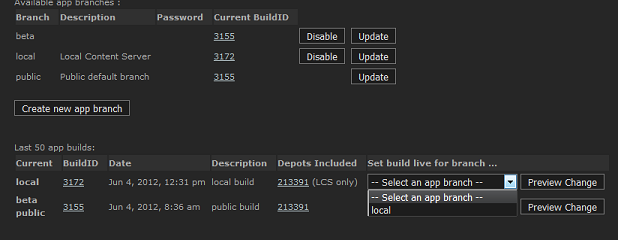
Configuring Steam Client To Use Your Local Content Server
For the Steam client to know where to look for your game, you'll need to create a file,steam_dev.cfg in the same directory that contains steam.exe.This file should contain the following text:
@LocalContentServer YourWebServerName
Examples:
@LocalContentServer localhost
@LocalContentServer "127.0.01:8080"
- Either the server IP or server hostname can be used.
- If you need to specify another port then 80, it must be "ip:port" in quotes
- Don't add "http://" in front, HTTPS is not supported
Note: The default location of the Steam executable is:
- For Windows: C:\Program Files (x86)\Steam\
- For macOS: Steam.app/contents/macOS/
- For Linux: ~/.local/share/Steam/
Note As of September 2026, Steam will begin requiring newly-created "local" app branches to be password-protected. For local branches with a password, users will also need to enter the password into the Steam client UI to unlock the "local" branch selection. They can do this as shown below. For best results, the user should have the @LocalContentServer setting placed in their steam_dev.cfg before unlocking the beta.
- right-clicking the game in the Steam Library
- choosing "Properties"
- selecting "Game Versions & Betas"
- entering the password in the "Private Versions" text box and hitting "Check Code"
- selecting the newly-appearing "local" entry under "Selected Game Version" above



