Steamworks Documentation
- Documentation Home Page
- Getting Started
-
Store Presence
- Applications
- Coming Soon
- Developer And Publisher Homepages
- Early Access
- Explain Your Editions
- Franchise Pages
- Free To Play Games
- Graphical Assets - Overview
- Livestreaming
- Localization and Languages
- Pre-Purchasing on Steam
- Pricing
- Promo Event Tools, Rules, and Guidelines
- Release Dates
- Release Options
- Release Process
- Removing a product from Steam
- Review Process
- Roadmaps
- Season Passes
-
Steam China
- Steam Tags
- Store Page, Building and Editing
- Testing On Steam
- Top Sellers Lists
- Trailers
- Updating Your Game - Best Practices
- User Reviews
-
Features
- Anti-cheat and Game Bans
- Common Redistributables
- Enhanced Rich Presence
- Game Notifications
- Microtransactions (In-Game Purchases)
- Multiplayer
- Stats and Achievements
- Steam Audio
- Steam Cloud
- Steam Cloud Play (Beta)
- Steam Community
- Steam DRM
- Steam Error Reporting
- Steam Families
- Steam HTML Surface
-
Steam Input
- Action Manifest Files
- Action Set Layers
- Activators
- Browsing Configurations
- General Concepts
- Getting Started for Developers
- Getting Started for Players
- In-Game Actions File
- Input Source Modes
- Input Sources
- Legacy Mode Bindings
- Mode Shifting
- Mouse Regions
- Radial Menus
- Steam Input Devices
- Steam Input Gamepad Emulation - Best Practices
- Templates for In-Game Actions Files
- Touch Menus
- Uploading Steam Input Configs to Steam Workshop
- Steam Inventory Service
- Steam Keys
- Steam Leaderboards
- Steam Overlay
- Steam Playtest
- Steam Remote Play
- Steam Screenshots
- Steam Timelines
- Steam Voice
- Steam Workshop
- User Authentication and Ownership
- Virtual Reality
- Finance
-
Sales and Marketing
- Advertising on Steam
- Best Practices, Marketing
- Community Moderation
- Curators and Curator Connect
- Discounting
- Events and Announcements Tools
- Features And Tools, Marketing
- Followers
- Google Analytics
- Points Shop Items
- Profile Features
- Steam Branding Guidelines
- Steam Community Items
- Store and Platform Traffic Reporting
- Store Widget
-
Upcoming Steam Events
- Steam Next Fest
-
Steam Themed Sale Events
- Steam Auto Battler RPG Fest 2026
- Steam Cooking Fest 2026
- Steam Couch Co-Op Fest 2027
- Steam Desktop Companion Fest 2027
- Steam Dinos vs. Robots Fest 2027
- Steam Fighting Fest 2027
- Steam Medieval Fest 2026
- Steam Mountaineering Fest 2027
- Steam Racing Fest 2027
- Steam Real-Time Strategy Fest 2027
- Steam Rhythm Fest 2027
- Steam Scream V Fest
- Steam Sheep Fest 2027
- Steam Shop Keeper Fest 2027
- Steam Witch Fest 2027
- UTM Analytics
- Visibility on Steam
- Wishlists
- Steamworks SDK
- Web API Overview
- Accessibility Features
-
Steam Hardware
- Getting your game ready for Steam Deck and Steam Machine
- How to debug Windows games on Steam Deck and Steam Machine
- How to load and run games on Steam Deck and Steam Machine
- Steam Deck
- Steam Deck and Steam Machine Compatibility Review
-
Steam Frame
- Connecting adb to Lepton
- How to load and run games on Steam Frame
- How to upload Android APKs to Steam
- OpenXR Game Engine Integrations
- Setting up your Steam Frame for development
- Steam Frame Debugging
- Steam Frame Input
- Steam Frame Standalone Compatibility Review Process
- Suggesting default user settings for your game
- What games can run standalone on Steam Frame
- Steam Hardware and Proton
- Steam Machine
- Steam PC Café Program
-
Steamworks API Reference
- ISteamApps Interface
- ISteamClient Interface
- ISteamController Interface (Deprecated)
- ISteamFriends Interface
- ISteamGameCoordinator Interface
- ISteamGameServer Interface
- ISteamGameServerStats Interface
- ISteamHTMLSurface Interface
- ISteamHTTP Interface
- ISteamInput Interface
- ISteamInventory Interface
- ISteamMatchmaking Interface
- ISteamMatchmakingServers Interface
- ISteamMusic Interface
- ISteamNetworking Interface
- ISteamNetworkingMessages Interface
- ISteamNetworkingSockets Interface
- ISteamNetworkingUtils Interface
- ISteamParties Interface
- ISteamRemotePlay Interface
- ISteamRemoteStorage Interface
- ISteamScreenshots Interface
- ISteamTimeline
- ISteamUGC Interface
- ISteamUser Interface
- ISteamUserStats Interface
- ISteamUtils Interface
- ISteamVideo Interface
- SteamEncryptedAppTicket
- steamnetworkingtypes.h
- steam_api.h
- steam_gameserver.h
-
Steamworks Web API Reference
- IBroadcastService Interface
- ICheatReportingService Interface
- ICloudService Interface
- IEconMarketService Interface
- IEconService Interface
- IGameInventory Interface
- IGameNotificationsService Interface
- IGameServersService Interface
- IInventoryService Interface
- ILobbyMatchmakingService Interface
- IPartnerFinancialsService Interface
- IPlayerService Interface
- IPublishedFileModerationService Interface
- IPublishedFileService Interface
- ISiteLicenseService Interface
- ISteamApps Interface
- ISteamCommunity Interface
- ISteamEconomy Interface
- ISteamGameServerStats Interface
- ISteamLeaderboards Interface
- ISteamMicroTxn Interface
- ISteamMicroTxnSandbox Interface
- ISteamNews Interface
- ISteamPublishedItemSearch Interface
- ISteamPublishedItemVoting Interface
- ISteamRemoteStorage Interface
- ISteamUserAuth Interface
- ISteamUser Interface
- ISteamUserStats Interface
- ISteamWebAPIUtil Interface
- IStoreService Interface
- IUserReviewsService
- IWorkshopService Interface
How to upload Android APKs to Steam
Deploying builds to Steam is much like doing so for any supported platform.
Then from your App Admin page, click Edit Steamworks Settings under Technical Tools.

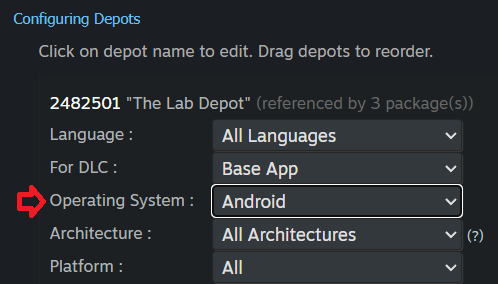
Click Edit under Configuring Depots on the depot you will be adding the APK to. Set Operating System to Android.
Extra files packaged as .obb files should be bundled in a directory called obb, organized as follows:
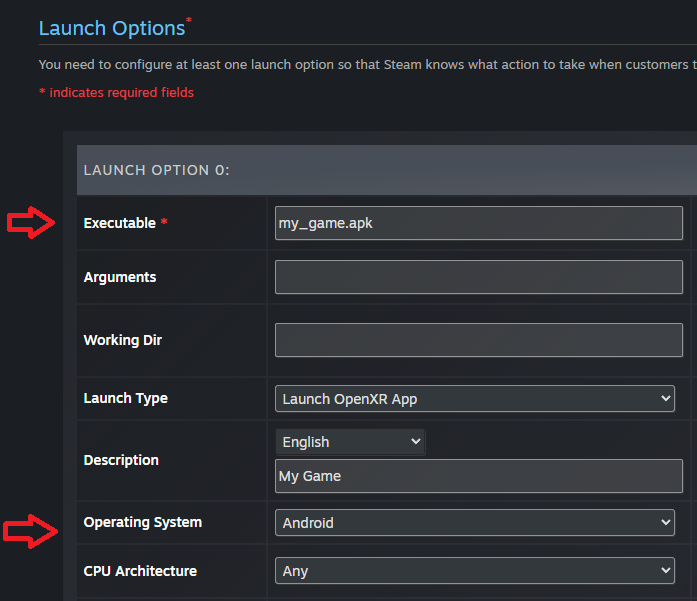
Set your APK as the Executable, and set the Operating System to Android.
Click Add New Auto-Cloud Path if needed, and select AndroidExternalData for the Root, and set Subdirectory such that the Preview text below matches the path on Android to your save data directory.

Finally, Set OS to Android.
Step 1 - Setup New App
Follow these general instructions for setting up a new app on Steam.Then from your App Admin page, click Edit Steamworks Settings under Technical Tools.
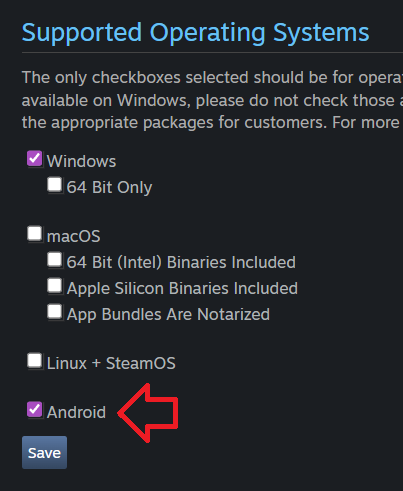
Step 2 - Set Supported Operating Systems
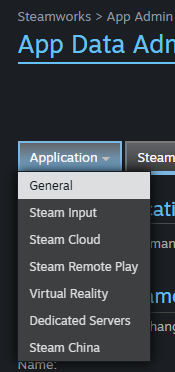
Navigate to the Application > General tab for your app, and check Android under Supported Operating Systems. This indicates compatibility on the store page.Step 3 - Configure Depot
Navigate to the SteamPipe > Depots tab for your app. If this is an Android only app you will be editing the default depot, otherwise you will want to create a new Android-specific depot.Click Edit under Configuring Depots on the depot you will be adding the APK to. Set Operating System to Android.
- Features like Language allows you to use different OBBs, etc. for different languages.
- The presence of an Android depot is what allows you to install and launch APKs via Lepton.
- Be sure to click Save after making changes here.
- Any newly defined depots will need to be included in a package to grant you ownership of them. Each game on Steam should have a Developer Comp package which is automatically granted to the accounts listed within your publisher group. You can add the new depots to that package (and/or other packages that should have these depots) on the Associated Packages & DLC page.
Adding depots (regardless of associated package access) to a released game will be publicly visible. Instead, you can add to an unreleased DLC.
File layout
Game files should be laid out with a top-level .apk that is listed as the Executable in the launch options for the app in Steamworks. It is possible to have multiple .apk's, each with their own launch option.Extra files packaged as .obb files should be bundled in a directory called obb, organized as follows:
my_game.apk
obb/content_001.obb
obb/content_002.obb
Step 4 - Add Launch Option
Navigate to Installation > General Installation and click Add new launch option.Set your APK as the Executable, and set the Operating System to Android.
Step 5 - Steam Cloud
Navigate to the Application > Steam Cloud tab for your app, and follow these instructions for setting quota, etc.Click Add New Auto-Cloud Path if needed, and select AndroidExternalData for the Root, and set Subdirectory such that the Preview text below matches the path on Android to your save data directory.
Finally, Set OS to Android.
Testing
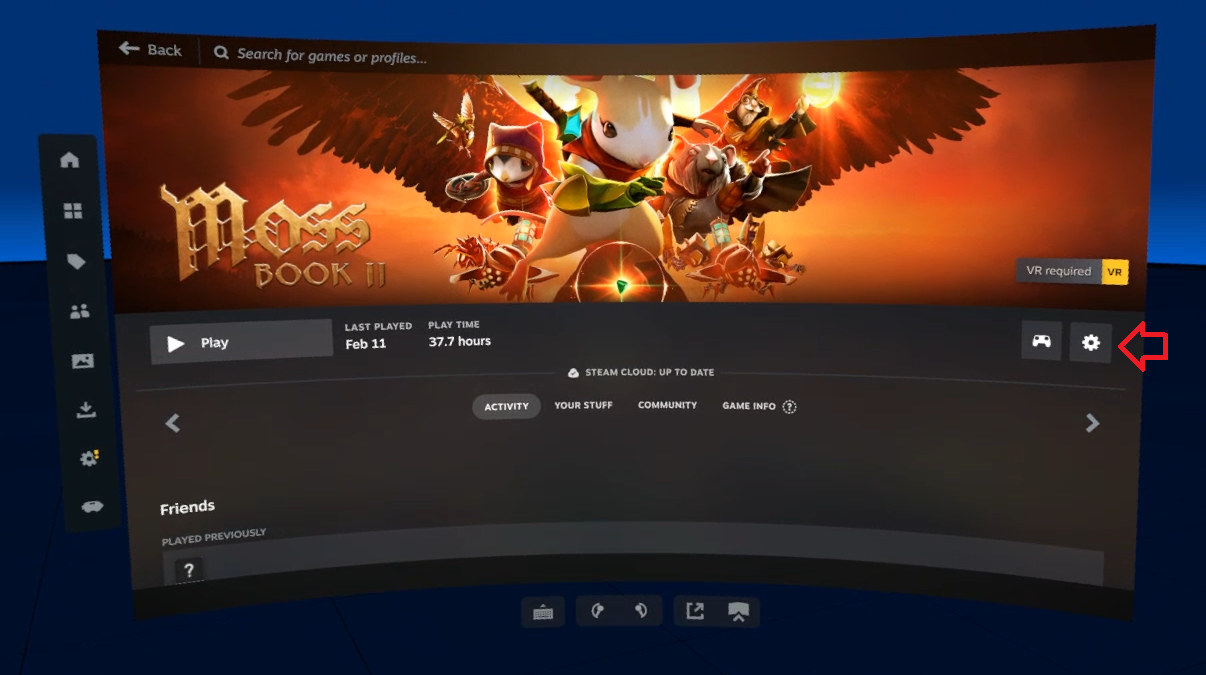
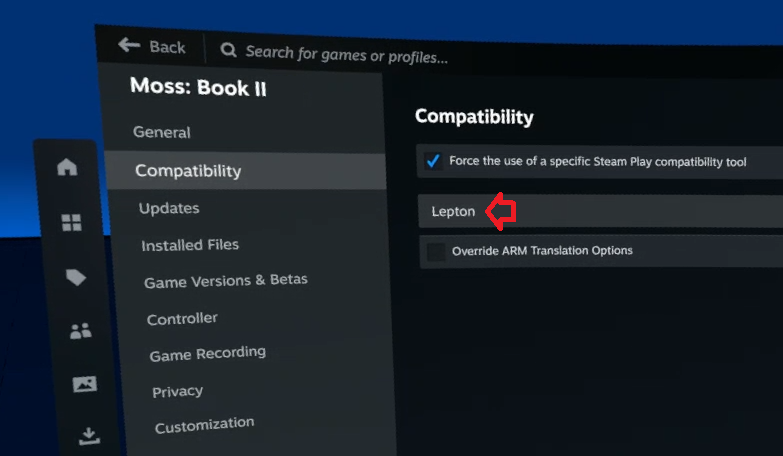
If you have builds for multiple platforms, choose the Compatibility Tool in Steam app Properties, to select which variant gets downloaded and launched.