Steamworks Documentation
Step by Step: Achievements

In Brief
Use achievements to reward players for hitting certain milestones or for interacting with your game in particular ways.Level of integration
10 minutes and under 10 lines of code. Steamworks SDK integration necessary.Introduction
Achievements can be used as a way to encourage and reward player interactions and milestones within your game. They are often used for marking number of kills, miles driven, chests opened or other common actions within your game. And they can also be used to help your players discover different ways of playing your game. When unlocked, these achievements will pop up in the corner of the players' window and will be marked within an achievement page for that player.As your game grows, you can organize its achievements into Achievement Sets. Sets let you group achievements in ways that make sense for your game, add achievements for DLC without affecting completion of the base game, and retire achievements for content that has been removed without taking them away from players who earned them. See Achievement Sets below for details.
Note: Achievement Sets are currently in beta. We'll continue making improvements during the beta, and this documentation will be updated as things change.
Technical Overview
The following is a quick step by step guide to integrating very basic Steam Achievements into your application in under 10 minutes and under 10 lines of code integrated into your code base. The Steamworks SDK comes with a great example application called Spacewar that shows off the full breadth of Steam features and should be your first stop to see all Steam features in action. This tutorial distills the information found in Spacewar and the Stats and Achievements API down to just the necessary information required for Steam Stats to keep things as straightforward as possible. Please note that there is a considerable amount of overlap between stats and achievements, as such if you are integrating both be aware that a lot of calls can be consolidated.Achievement Sets are configured entirely in Steamworks. They don't require any additional code, and your game unlocks achievements in a set using the same API names and calls described in this guide.
Step 1 - Defining your game's Achievements
Achievements are application specific and are setup on the Achievement Configuration page in the Steamworks App Admin backend. The following is the list of achievements from the Steamworks sample app Spacewar: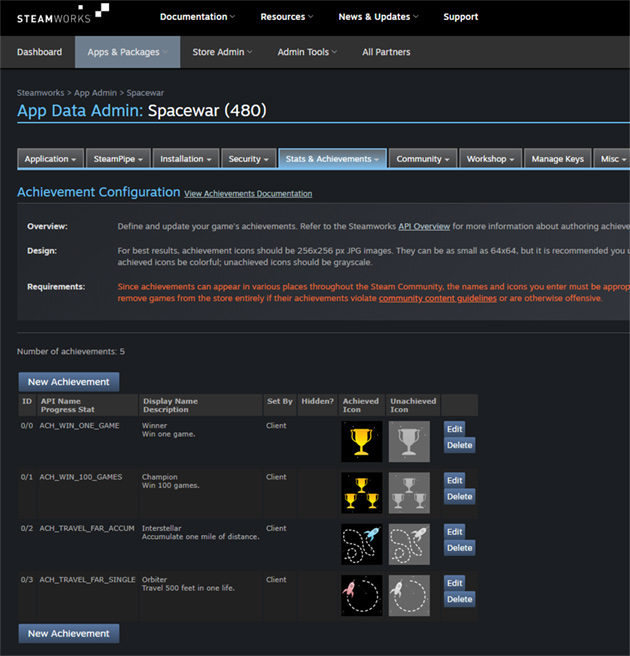
Accessing the Achievements Editor
Achievements are created and managed in the achievements editor:- From your app's landing page in Steamworks, select Edit Steamworks Settings.
- Select Stats & Achievements > Achievements.
- Click the banner at the top of the page to open the new achievements editor.
You need permission to edit the app's info in order to use the achievements editor.
The editor has two tabs:
- Manage Achievements - Create, edit, and organize your sets and achievements.
- Bulk Import/Export - Export and import your achievements as CSV files, and upload icons in bulk. See Bulk Import/Export below.
The top of the editor shows how many achievements and sets your game is using out of your limits, and links to preview your achievements on your own achievements page.
Creating and Editing Achievements
All of your achievements belong to the Base game achievements set unless you assign them to another set. To create an achievement, click Create Achievement in the set it should belong to. To edit an achievement, select it in the achievements table.| Field | Description |
|---|---|
| API Name | A unique name your game passes to the Steamworks API, such as ACH_WIN_ONE_GAME. Required. |
| Display Name | The name of the achievement shown to players. Localizable. |
| Description | The description of the achievement shown to players. Localizable. |
| Icons | The Achieved icon and Unachieved icon. See Icons below. |
| Set By | Who can unlock the achievement: the client, a game server, or an official game server. |
| Progress Stat | Optionally, a stat used to display progress toward this achievement, along with the Stat Range that maps to 0% and 100% progress. |
| Visibility | Visible, or Spoiler to hide the achievement's details until it's unlocked. |
| Optional Status | Available, or Archived if the achievement can no longer be earned. |
| In Set | The set this achievement belongs to. |
The achievements table also shows each achievement's ID, its set, how it's set, and its global unlock rate. Use the Filter box in the toolbar to find achievements by name, description, or API name.
Deleting an achievement removes it for everyone, including players who have already unlocked it. If an achievement has been earned by players, the editor will recommend archiving it instead. See Archiving below.
Icons
For best results, achievement icons should be 256x256 pixel PNG images. They can be as small as 64x64, but we recommend using the larger size. Icons must be square, and larger icons are scaled down to 256x256. JPG images are also accepted.We recommend making achieved icons colorful and unachieved icons grayscale. You don't need to create an unachieved icon yourself: click Generate in the achievement editor, or use the Automatically generate unachieved icons option when uploading in bulk, to create a grayscale unachieved icon from the achieved icon. You can replace the generated icon with your own at any time.
Localization
Use the Language selector in the toolbar to view and edit your achievements in each of your game's languages. A warning icon is shown in the toolbar when some languages are missing localized text, and each achievement or set that's missing text is marked in the editor.To choose which languages your achievements support, click the edit button next to Language in the toolbar, or click Configure Languages on the Bulk Import/Export tab. These languages are used in the editor and in the localization CSV files. When you query achievements through the API, Steam returns the text for the requested language.
Limits
| Item | Limit |
|---|---|
| Achievements per app | 5,000 (100 for apps that have not yet been vetted) |
| Sets per app | 40, including the base game set |
Archived achievements count toward the achievement limit.
Step 2 - Encapsulating Achievements work
The following code is game independent and can be added to your game as you see fit. The class is fully functional as is but can be easily extended to meet any further needs. All of this code was taken directly from the Spacewar example filesStatsAndAchievements.cpp/h.Header File
We first define a structure to hold our achievement data received from Steam and provide a macro for creating objects of that type. This data maps directly to what is found on the Achievement Configuration page.#define _ACH_ID( id, name ) { id, #id, name, "", 0, 0 }
struct Achievement_t
{
int m_eAchievementID;
const char *m_pchAchievementID;
char m_rgchName[128];
char m_rgchDescription[256];
bool m_bAchieved;
int m_iIconImage;
};
Next we define a helper class that will wrap all of the Steam Stats API calls as well as creating all of the Steam callbacks.
class CSteamAchievements
{
private:
int64 m_iAppID; // Our current AppID
Achievement_t *m_pAchievements; // Achievements data
int m_iNumAchievements; // The number of Achievements
bool m_bInitialized; // Are we ready to use the API?
public:
CSteamAchievements(Achievement_t *Achievements, int NumAchievements);
~CSteamAchievements();
bool Initialize();
bool SetAchievement(const char* ID);
STEAM_CALLBACK( CSteamAchievements, OnUserStatsStored, UserStatsStored_t,
m_CallbackUserStatsStored );
STEAM_CALLBACK( CSteamAchievements, OnAchievementStored,
UserAchievementStored_t, m_CallbackAchievementStored );
};
Code File
Constructor
Parameters - The constructor takes a pointer to an array of achievements along with the length of the array. The formating of that array will be covered in the main game code later.Returns - N/A
What it does - The constructor initializes a number of members along with grabbing the AppID we are currently running as. In addition it hooks up the call back methods to handle asynchronous calls made to Steam. Finally it makes an initial call to
Initialize() to check that the API is ready.CSteamAchievements::CSteamAchievements(Achievement_t *Achievements, int NumAchievements):
m_iAppID( 0 ),
m_bInitialized( false ),
m_CallbackUserStatsStored( this, &CSteamAchievements::OnUserStatsStored ),
m_CallbackAchievementStored( this, &CSteamAchievements::OnAchievementStored )
{
m_iAppID = SteamUtils()->GetAppID();
m_pAchievements = Achievements;
m_iNumAchievements = NumAchievements;
m_bInitialized = Initialize();
}
Initialize()
Parameters - NoneReturns - a bool representing if the call succeeded or not. If the call failed then most likely Steam is not initialized. Make sure you have a Steam client open when you try to make this call and that SteamAPI_Init has been called before it.
What it does - Ensures that Steam is loaded and there is a User context logged in.
bool CSteamAchievements::Initialize()
{
// Is Steam loaded? If not we can't get stats.
if ( NULL == SteamUserStats() || NULL == SteamUser() )
{
return false;
}
// Is the user logged on? If not we can't access stats.
if ( !SteamUser()->BLoggedOn() )
{
return false;
}
return true;
}
SetAchievement()
Parameters - The string identifier of the Achievement that you want to set (e.g. "ACH_WIN_ONE_GAME")Returns - a bool representing if the call succeeded or not. If the call failed then Steam is not initialized.
What it does - This method sets a given achievement to achieved and sends the results to Steam. You can set a given achievement multiple times so you don't need to worry about only setting achievements that aren't already set. This is an asynchronous call which will trigger two callbacks:
OnUserStatsStored() and OnAchievementStored().bool CSteamAchievements::SetAchievement(const char* ID)
{
// Have we received a call back from Steam yet?
if (m_bInitialized)
{
SteamUserStats()->SetAchievement(ID);
return SteamUserStats()->StoreStats();
}
// If not then we can't set achievements yet
return false;
}
OnUserStatsStored()
Parameters - N/AReturns - Nothing
What it does - This method is a callback that is called anytime you attempt to store stats on Steam.
void CSteamAchievements::OnUserStatsStored( UserStatsStored_t *pCallback )
{
// we may get callbacks for other games' stats arriving, ignore them
if ( m_iAppID == pCallback->m_nGameID )
{
if ( k_EResultOK == pCallback->m_eResult )
{
OutputDebugString( "Stored stats for Steam\n" );
}
else
{
char buffer[128];
_snprintf( buffer, 128, "StatsStored - failed, %d\n", pCallback->m_eResult );
OutputDebugString( buffer );
}
}
}
OnAchievementStored()
Parameters - N/AReturns - Nothing
What it does - This method is a callback that is called anytime Achievements are successfully stored on Steam.
void CSteamAchievements::OnAchievementStored( UserAchievementStored_t *pCallback )
{
// we may get callbacks for other games' stats arriving, ignore them
if ( m_iAppID == pCallback->m_nGameID )
{
OutputDebugString( "Stored Achievement for Steam\n" );
}
}
Step 3 - Integrating into your game
The following is a complete listing of code snippets that you would need to integrate into your game in the appropriate locations.Defines and Globals
The following is the list of includes that are needed to build with Achievements, an enum of our game specific achievements and a global pointer to our helper object. Please note that the achievements match those of the Admin page on Steamworks....
#include "steam_api.h"
// Defining our achievements
enum EAchievements
{
ACH_WIN_ONE_GAME = 0,
ACH_WIN_100_GAMES = 1,
ACH_TRAVEL_FAR_ACCUM = 2,
ACH_TRAVEL_FAR_SINGLE = 3,
};
// Achievement array which will hold data about the achievements and their state
Achievement_t g_Achievements[] =
{
_ACH_ID( ACH_WIN_ONE_GAME, "Winner" ),
_ACH_ID( ACH_WIN_100_GAMES, "Champion" ),
_ACH_ID( ACH_TRAVEL_FAR_ACCUM, "Interstellar" ),
_ACH_ID( ACH_TRAVEL_FAR_SINGLE, "Orbiter" ),
};
// Global access to Achievements object
CSteamAchievements* g_SteamAchievements = NULL;
...
Initialization
The call to SteamAPI_Init initializes all of Steam and must be called before anything else. If that call succeeds then we create the helper object by passing in the array of achievements along with the size of the array....
// Initialize Steam
bool bRet = SteamAPI_Init();
// Create the SteamAchievements object if Steam was successfully initialized
if (bRet)
{
g_SteamAchievements = new CSteamAchievements(g_Achievements, 4);
}
...
Processing Callbacks
To ensure that we process all Steam callbacks we need to regularly pump for new messages. This is achieved by adding this call to the game loop....
SteamAPI_RunCallbacks();
...
Triggering Achievements
Triggering an achievement is as simple as a single call passing along the achievement identifier....
if (g_SteamAchievements)
g_SteamAchievements->SetAchievement("ACH_WIN_100_GAMES");
...
Note: Steam will not unlock an achievement in a DLC set for a player who can't play that DLC, or an achievement in an archived set. Make sure your game only awards DLC achievements to players who own the DLC, and stops awarding achievements once you archive them. See Achievement Sets below.
Shutdown
The call to SteamAPI_Shutdown is probably something you already have in your code. It shuts down Steam and must be called before your application exits. Finally we delete the helper object we created....
// Shutdown Steam
SteamAPI_Shutdown();
// Delete the SteamAchievements object
if (g_SteamAchievements)
delete g_SteamAchievements;
...
Step 4 - Testing and Troubleshooting
To set or clear stats or an achievement without adding code to your game, you can use the Steam client console. Run with steam.exe -console, then:
- achievement_clear <appid> <achievement name>
- reset_all_stats <appid>
Previewing and Publishing
Changes you make in the achievements editor are saved to your app's draft configuration. To make them live, publish your changes from the Publish tab in Edit Steamworks Settings, as with any other Steamworks setting.Before release, you can preview your achievements on your own Steam achievements page, linked from the top of the editor. Use developer-only sets to test new achievements without showing them to players.
To fully enable achievements and complete your release checklist, you also need to check the Steam Achievements option under Supported Features in your store page's basic info. To pass the release checklist, every achievement must have a name in each of the languages you've configured, and must have an icon.
Achievement Sets
Achievement Sets let you organize your game's achievements into named groups, track player completion per set, and add or retire achievements over time without taking away a player's completion. With Achievement Sets, you can:- Group achievements in ways that make sense for your game, such as by mode, character, chapter, or event.
- Add achievements for DLC that only count toward completion for players who own that DLC.
- Archive achievements and sets for content that has been retired, without removing them from players who earned them.
- Build and test achievements in developer-only sets that are hidden from players.
- Manage achievement definitions, set assignments, icons, and localization in bulk using CSV and image files.
Base Game Set
Every game has a Base game achievements set. Achievements that aren't assigned to another set belong to the base game set, so if you don't create any additional sets, all of your achievements are in the base game set. For most games, this set will contain most of your achievements.The base game set can't be renamed, deleted, or reordered. It is always shown first, unless it is empty--in which case it won't be displayed (but will still count against the limit).
Custom Sets
You can create additional sets to organize your achievements. Each set has a name, which is shown to players, and an optional restriction:| Restriction | Who can earn achievements in the set |
|---|---|
| All players of the game | Anyone who can play the game. |
| Owners of (DLC) | Only players who can play the selected DLC. |
Players see progress for each set, and completing a set is tracked separately from completing the rest of the game.
DLC Sets
A set restricted to owners of a DLC is a DLC set. DLC sets:- Can be explored by all players on the game's achievements page, but only players who can play the DLC can earn them.
- Do not count toward completion of the base game or any other set.
- Stay hidden from players until the DLC is released. This lets you configure and test achievements for upcoming DLC ahead of launch.
- Use the DLC's store artwork and store link on the achievements page. If the DLC doesn't have a published store page, the base game's artwork and store link are used instead, and the editor will warn you about this.
- Are shown in an achievements panel on the DLC's store page.
The set name will be displayed with a "DLC" prefix, so you don't need to include "DLC" in the name yourself.
Developer-only Sets
A set marked as Developer-only is only visible to developers of the app, whether or not the app has been released. Only developers can unlock achievements in a developer-only set. Developer-only sets are useful for building and testing new achievements before they're ready to ship.Archiving
Sometimes a game mode is replaced, a seasonal event ends, or an achievement can no longer be earned. Instead of deleting achievements that players have earned, you can archive them.- Archived achievements remain visible to players who unlocked them, and can still be featured on their profiles. Players who haven't unlocked an archived achievement won't see it, and it won't count against their completion of the set it belongs to.
- Archived sets are only visible to players who previously unlocked an achievement in them. No achievements in an archived set can be unlocked. Players who have unlocked achievements in an archived set can still see all of the set's achievements.
Archiving doesn't change your game. When you archive an achievement, make sure your game no longer awards it.
Spoiler Achievements
Achievements previously marked as Hidden are now called Spoiler achievements. To avoid spoiling your game, a spoiler achievement's name and description aren't shown to players until they unlock it or choose to reveal it. Spoiler and archived achievements aren't shown in the achievements panel on your store page.Completion
Completion is tracked per set:- A player completes a set by unlocking every achievement in it that is still available. Archived achievements that the player hasn't unlocked aren't required.
- Once a player completes a set, it stays completed, even if you add achievements to that set later.
- DLC sets only count toward a player's completion if they own the DLC.
Players can show off how many games and sets they have completed on their Steam profile. A game qualifies for the Completionist Showcase on their profile when the player has completed any of the game's sets.
Creating a Set
- On the Manage Achievements tab, click Create New Set.
- Enter a Set name. The name is shown to players.
- Under Restrictions, choose All players of the game, or select a DLC to restrict the set to owners of that DLC. The DLC list includes the DLC listed for your game, along with their app IDs.
- Optionally, mark the set as Developer-only.
- Save the set.
A set with no achievements in it will not appear to anyone.
Editing a Set
Open the set's menu and choose Edit set to change its name, restrictions, developer-only status, or to mark it as Archived.Each set shows its Visibility in the editor:
| Visibility | Meaning |
|---|---|
| Visible | Players can see this set. |
| Hidden by restrictions | Players can't see this set yet, for example because it's developer-only or its DLC hasn't been released. |
| Will be visible upon publish | Players will be able to see this set once you publish your changes. |
Reordering Sets
Click Reorder Sets in the toolbar, then drag and drop your sets to choose the order players will see them. The base game set can't be moved.Deleting a Set
Open the set's menu and choose Delete set. You must move or delete all achievements in a set before you can delete it. If you want to retire a set without removing achievements from players who earned them, archive it instead.Moving Achievements Between Sets
To move a single achievement, change its In Set field. To move many achievements at once, use Bulk Move:- Click Bulk Move in the achievements table header.
- Check the achievements you want to move. The number of selected achievements is shown at the bottom of the page.
- Choose a destination set, or choose Create New Set... to create one.
- Click Move.
The editor will warn you before a move that could affect players:
- Moving achievements from a visible set to a hidden or unreleased set will hide them from players who have already unlocked them.
- Moving achievements into a set that players have progress in may break completion for those players.
Note: Adding an achievement to a set that has already been released won't break completion for players, but it may not display naturally. Consider adding a new set instead.
Bulk Import/Export
The Bulk Import/Export tab lets you manage your achievements as files: export CSV files, edit them in a spreadsheet tool, and upload them back along with your icons.Workflow
- Click Export Definitions (.csv), Export Localization (.csv), and/or Export Set Localization (.csv) to download your current data.
- Edit the files. Header rows include notes in parentheses describing each column, for example
spoiler (true or false). These notes are ignored when you upload the file. - Drag your
.csvand.pngfiles onto the upload box, or click Select Files.... You can upload multiple files at once. - Review the Uploaded Files list for any errors. Removing a file undoes everything it contributed. To replace a file, correct it and upload it again.
- Review the Pending Changes. Nothing is saved until you click Save imported data.
If your game doesn't have any achievements yet, the definitions and localization exports are templates containing a couple of example rows beginning with
EXAMPLE_. You can type over them, delete them, or upload the template as-is to see how importing works.Achievement Definitions CSV
Exported as<appid>-achievements-definitions.csv. Each row defines one achievement.| Column | Description |
|---|---|
api_name | Required, unique. The name your game passes to the API. |
setid | Optional. The ID of an existing set. Leave blank for the base game set. |
permission | One of Client, GameServer, or OfficialGameServer. |
spoiler | true or false. |
archived | true or false. |
progress_stat_name | Optional. The name of an existing stat to use for a progress bar. Leave blank for no progress bar. |
progress_stat_min | A number, no lower than the stat's own minimum. Must be an integer if the stat is an integer stat. |
progress_stat_max | A number, greater than progress_stat_min and no higher than the stat's own maximum. Must be an integer if the stat is an integer stat. |
When you upload a definitions CSV, achievements are compared to your existing achievements by API name:
- To Add - Rows that don't match an existing API name are added as new achievements. If you meant to rename an existing achievement's API name, change it in the editor first or the old data will be removed.
- To Modify - Existing achievements whose values have changed are updated.
- Unmodified - Existing achievements whose values haven't changed are left alone.
- Missing from CSV - Existing achievements that aren't in the file are kept, unless you check Delete these achievements. Be thoughtful when removing achievements because you can't simply add achievements back when they have been removed.
Note: Achievement names and descriptions aren't part of the definitions CSV. Use the localization CSV to set them.
Note: A progress stat must already exist and must have the same permission as the achievement. To create new stats, edit your stats first.
Achievement Localization CSV
Exported as<appid>-achievements-localization.csv. Each achievement has two rows: one for its name and one for its description.| Column | Description |
|---|---|
api_name | Required. Must match an api_name from the definitions CSV or an existing achievement. API names are case sensitive here. |
field | name or description. |
| (one column per language) | The text for that language, for example english, french, german. |
The language columns match the languages configured for your achievements. If you're starting on localization, configure your languages first so the exported CSV includes those language columns.
If you upload a definitions CSV and a localization CSV together, localization for achievements that are missing from the definitions CSV won't be updated.
Set Localization CSV
Exported as<appid>-achievement-sets-localization.csv. Each row contains one set's name.| Column | Description |
|---|---|
setid | Required. The ID of an existing set. |
| (one column per language) | The set name in that language. english is required. |
Sets must be created in the editor before you can localize them here. The base game set can't be renamed.
Icon Files
Name icon files with the achievement's API name followed by_ACHIEVED or _UNACHIEVED, for example LEVEL_20_ACHIEVED.png and LEVEL_20_UNACHIEVED.png. Icons are automatically assigned to the matching achievement.Check Automatically generate unachieved icons to create grayscale unachieved icons for any achieved icons you upload.
If you upload a definitions CSV along with your icons, icons are only assigned to achievements included in that CSV. To upload icons on their own, upload them without a definitions CSV.
What Players See
Achievements Page
Players see your achievements on the Steam achievements page, in the Steam Client and on the Steam Community website. The achievements page:- Shows progress and completion for each set, including DLC sets.
- Lets players compare their achievements with up to 3 friends.
- Shows the global unlock rate for each achievement, and highlights rare achievements.
- Lets players search achievements and filter them by unlock state or set.
You can link players directly to your game's achievements:
| URL | Shows |
|---|---|
https://steamcommunity.com/achievements/<appid> | Your game's achievements, without a specific player's progress. Available whether or not the player owns the game. |
Store Pages
The achievements panel on your store page shows achievements from your game, excluding spoiler and archived achievements. DLC store pages show achievements from that DLC's set.Profiles
Players can show off the number of games and sets they've completed in their profile's Achievement Showcase, and can feature games in the Completionist Showcase once they've completed any of the game's sets.Best Practices
- Add new sets for new content. Adding achievements to a set that players have already completed may appear confusing for players, as the set will be marked completed but will have locked achievements. Creating a new set for new content, such as a DLC, an update, or a new mode, keeps progress clear for players.
- Archive instead of deleting. If players have earned an achievement, archive it rather than deleting it, so players keep what they earned.
- Use DLC sets for DLC achievements. This keeps the base game's completion separate, so players who don't own the DLC aren't blocked from completing your game.
- Keep set names short and descriptive. Set names are shown to players in many places, including in the Steam Client.
- Localize set names for each language your game supports, using the set localization CSV or the editor.
- Test with developer-only sets before releasing new achievements to players.



