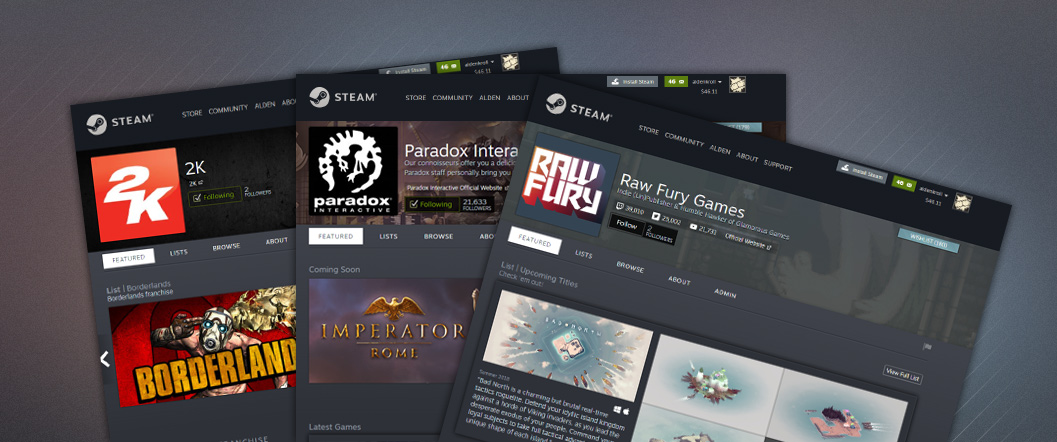
Steam now has the tools for developers and publishers to create a customized homepage page for their organization and to display all the games made or published by that organization. There are a variety of ways you can customize your homepage, and you'll be able to link all your individual games to your homepage. (you can also create franchise-specific pages. Please see
Franchise Pages Documentation for more information.)
https://www.youtube.com/watch?v=i9NMgyMDV4Q&tOnce your page is set up, players can then 'follow' your organization to be notified when you release your next title.
This page explains the process and details for setting up and customizing your homepage.
 Known issues and work in progress:
These are the bigger issues that we are currently aware of. If you encounter others, please give us feedback or ask questions in the beta group here:
https://steamcommunity.com/groups/SteamCreatorHomepageBeta- Do not drop a community group that you assigned a custom page URL as it will continue to belong to the dropped community group.
- Newly added games do not automatically add to your creator home page. You need to redo 'Associate your games' in the 'Setting Up' section below for each new game you add. We are looking to make this automatic in the future.
- What else? Let us know.
Before you start
We first need to make sure your Steam account can access these features.
- Make sure your Steam account is part of the Steamworks developer account with 'Edit App Marketing Data' permissions. You should see the name of your company up near the Steamworks logo at the top of this page.
- You'll need to make sure that your individual Steam account is not 'limited'. If your own account is limited, you won't be able to create community groups or request to join an existing group. Click here for details on limited accounts.
Setting up
You'll need to do a couple of things to first set up your page, after which it will mostly operate by itself. To get started:
- Create or select a community group - Developer/Publisher home pages are built on a community group, which is useful for managing permissions and access. So the first step is to Create a Community Group with the name of your company. You'll probably also want to upload an avatar image to the group for your company logo.
- Note that the name of your group will be used as the name at the top of your Creator Homepage.
- The URL associated with your community group will not be used for your Creator Homepage. You'll setup an entirely different URL once you've started the Creator specific setup (see the URL section below for more details).
- If you already have a group you wish you use, make sure you are an owner or officer within that group by visiting the group page and note whether you see a set of 'admin tools' in the right-hand column. If you want to use a group that was previously set up as a curator and posted game reviews, you can. Just follow the rest of the steps to upgrade that group to become your Creator Homepage. Any games you previously reviewed will still be listed and available.
- Associate your games - Now we need to go through a quick process to link the developer and publisher names shown on your store pages to this new creator homepage. Navigate to the Creator Homepage Setup which will list out all the apps you have 'Edit App Marketing Data' permission for. Select which developer and/or publisher names you want to associate with your new homepage by selecting the group from the drop-down for each name. Once you've done this and hit 'save', you can go to your Creator Homepage (follow the developer or publisher link from one of your store pages) and your page will now be grey instead of blue.
Keep in mind that if you create a new app on Steam after creating your homepage, you will need to complete this process again in order for that app to be associated with your creator homepage.
- Customize your new Creator Homepage - You can then go to your new Creator Homepage and customize it, adding a logo, background image, picking which titles to feature, creating lists. etc. See below for more details on customization.
Customizing your Creator Homepage
Once you go through the initial setup, your new page can be customized in a number of ways to highlight the games that you want to show off and to make it easier to find full franchises of games.
To access the administrative panel for your page, simply visit your page in the Steam store by clicking on the 'developer' or 'publisher' field. You should then see an 'admin' link on your new page where you can manage the layout of your page and create lists.
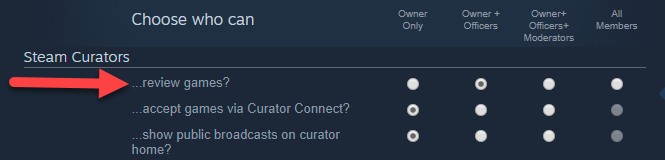
Note: The creator home is built-on top of Steam Curator technology and re-uses the curators existing permissions model. Your group membership level needs to have '...manage page admin settings and review games?' to access the 'Admin Tab'. For example, the default setting, will allow the owner and any member promoted to officer to be able to access the review tab.
Customization
You can customize your page in a few different ways:
- Featured games - On your Creator Homepage, you have five individual sections that can be customized with various options for format and contents. For example, you can select a 'New Releases' section to appear first on your page, followed by a row of 'Action Games'. You can even have a row of discounts automatically appear when you are running a promotion.
- Background image - You can upload a custom background image for the top area of your page to more strongly brand your presence. For best results, use an image that is 1500px wide and 261px tall.
- Tags - There is automatically a 'browse' section on your page that lists all your titles. You can select the list of tags that can be used to filter that list, depending on the tags that make most sense for your catalog. For example, if you primarily develop racing games, you can select racing subgenres as the useful set of tags to filter your games by.
- Lists - You can create lists of games by franchise or other logical grouping. These can then be featured on your page or used as promotional pages if you wish to point customers to a particular set of titles.
- Custom URL - You can define a friendly URL that your page can be listed under within Steam. See below for more details.
- Social media links - You can link your social media accounts to make it easy for fans to find your Facebook, Twitter, YouTube, Twitch accounts, or your own website.
- Post Announcements - You can also post announcements to appear on your Creator Homepage as well as in the activity feed of any followers.
- And more to come...
To see all customization options, please visit the administrative panel for your creator page.
Custom page URL
A custom page URL is an short name that helps your fans find your home page with an official URL on the Steam store such. For example:
www.steampowered.com/developer/valve.
Once you have specified and saved a page URL, you can use a few different URLs to get to your page, depending on your company and your preference:
Note: You should not misrepresent your company or use the name or trademark of a different company. Your choice of custom URL will be deemed a “Company Mark” under the Steam Distribution Agreement, so it should be original and not infringing on anyone else’s rights.
Creating Lists
Within your Creator Homepage, you can create lists for organizing groups of your games together. These can be long-term lists for organizing all the titles in a franchise, or can be used for temporary purposes such as listing out the titles you are running a promotion on.
To create a list, simply visit the admin panel for your Creator Page and select 'Create a list' from the left column. You can then give your list a name and description, select the format of your list, and select the titles to display in your list.
Releasing new games
New games you are working on releasing will each need to be linked to your Creator Homepage, and are best done prior to release of the new game.
- When creating the store page for a new title, you'll need to specify the 'developer', 'publisher', and optionally the 'franchise' fields.
- Once those are set, return to the Creator Homepage setup page (under "Apps & Packages" menu at the top of Steamworks) and scroll down to the "Unlinked" section.
- Associate any unlinked terms with the desired homepage and click 'save'
Once your store page has been approved and you set it live as 'coming soon', your new game will automatically appear on the linked homepages. Once you release your game, it will automatically appear as a new release on the linked pages.
Posting Announcements
Once your Creator Homepage is set up, you have a few ways to reach your fans. You can post an announcement in your group, which you can also choose to have show up on your Creator Homepage as well as optionally posted to a list of games.
- Posting to Creator Homepage - When posting an announcement from Creator Homepage, you can pick to have it appear on your homepage. This will allow the announcement to be listed on your page as well as in the activity feed of players that have followed your homepage.
- Posting to list of apps - When posting an announcement from within your Creator Homepage, you can choose to have that announcement posted to all the games on a list that you have created. When you choose this option and select a list, the announcement will then appear on the store page for each app in that list, as well as in the activity feed for players that follow any of those apps. These announcements will also appear in the 'news' section for each of the apps on that selected list.
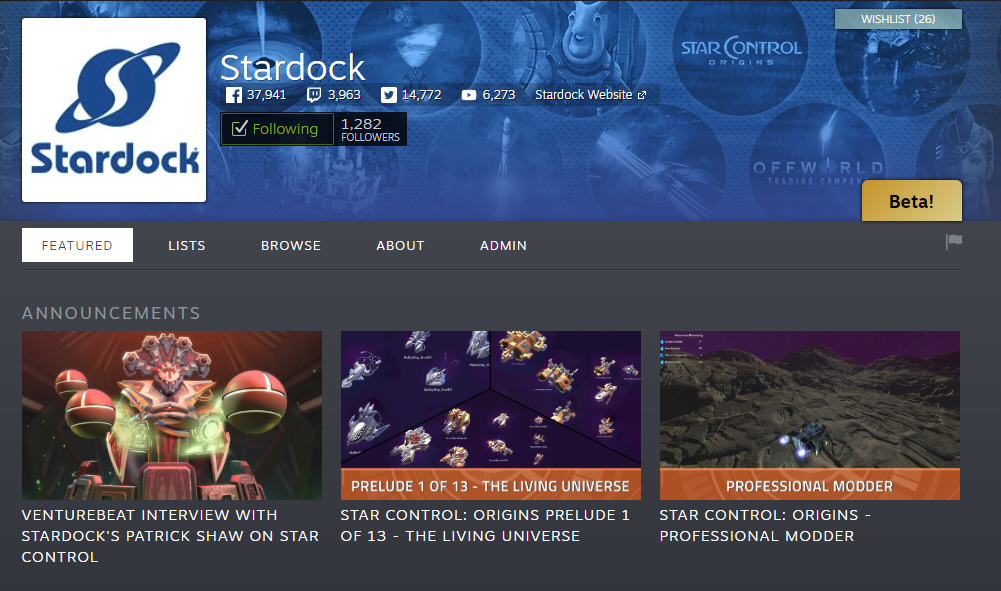
We will show up to three announcements on the top your homepage with a link to read the rest of them. Here is example what this would look like:
Broadcasting to Your Page
You can configure Creator home page to receive live broadcast. This can be enabled on the settings page of your admin panel (Admin->Edit Creator Settings). This option is near the bottom with the section title broadcast settings. By default this feature is disabled.
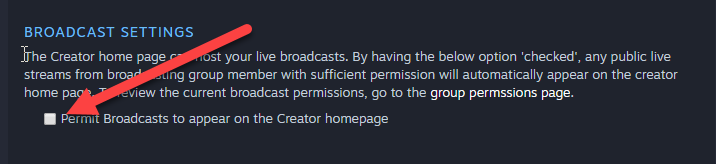
This will permit members of the Creator home's community group with the appropriate role (owner or officer or moderator) to automatically broadcast onto the publisher page. You can edit the role which is allowed by going to the 'group permissions page' in Steam community. By default, the broadcast permissions are set to the owner of the group.

NOTE: We currently only show a single broadcast on the publisher page chosen based on the highest viewership of the available broadcasts.
Franchise Pages
These pages are similar in their setup to a developer or publisher page, except that they will pull their names from the franchise field. The franchise field is a recent addition to your store page setting. You can update the franchise fields for your games by going to
https://partner.steamgames.com/apps/landing/<app id> and choosing Edit Store Page->Basic Info tab. The franchise information needs only to be entered in the primary game, any DLC will automatically inherit their parent apps franchises.
What customers see?
When a Steam customer follows your homepage, they are giving Steam a strong signal that they enjoy your content. Which lets Steam find ways to keep them informed on your major updates. It gives Steam permission to then enhance the following customers store experience by the following ways:
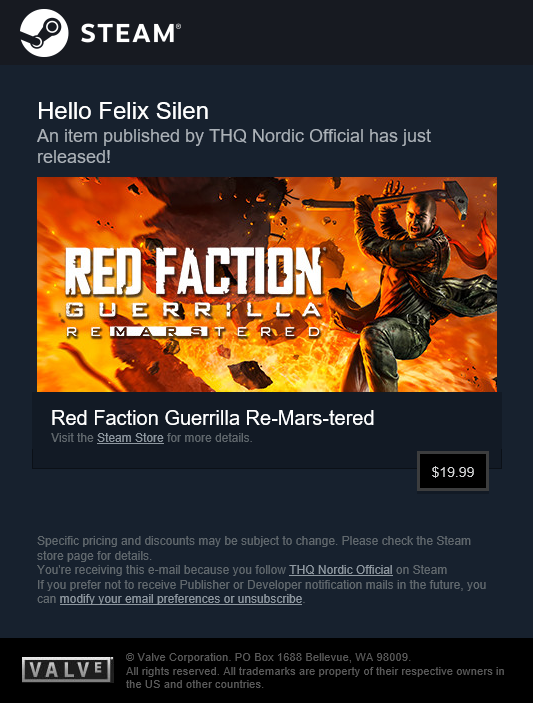
- They will receive an email when your game launches or enters early access or exits early access. For example:
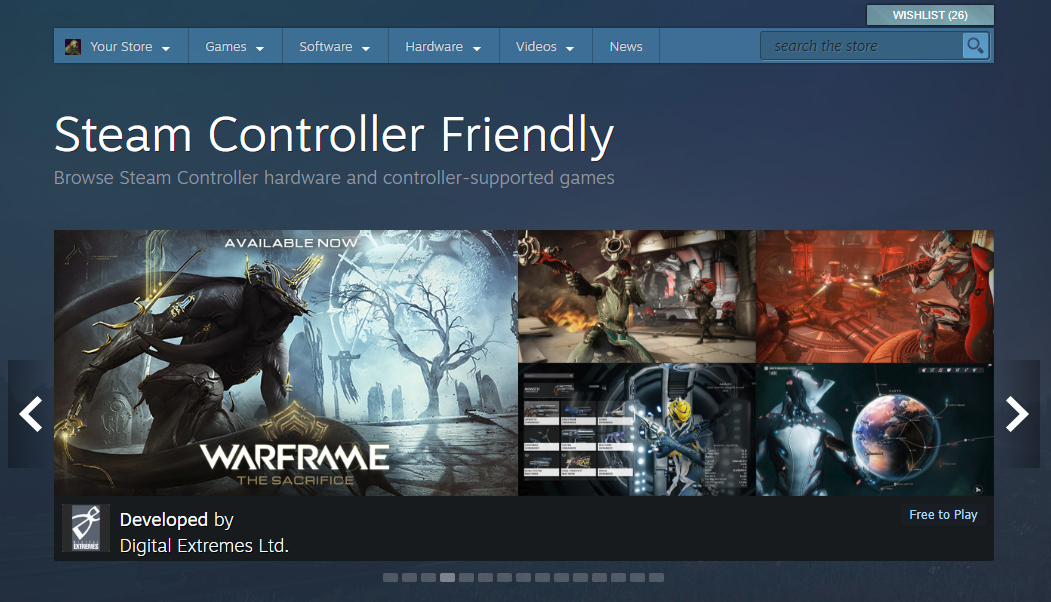
- When they are browsing either the Steam front page or a genre and/or tag Steam hub page, we will mix in your recently released games into their main capsules. We will also remind them why we are showing them the capsule.
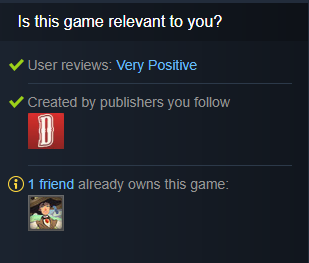
- The individual product page will highlight that they follow your page as a reason why this game is relevant to them.
FAQ
Q: Can I link more than one developer or publisher?
A: Yes, you can enter multiple developers and multiple publishers. For each one, you can specify the same page or a different page that the name should link to. Remember, you can only link to a Creator Homepage that you are in control of or have linked to previously. If your game is published by a different company, that publisher may have to link the game to their Creator Homepage themselves.
Q: Can I link different developer or publisher names to the same Creator Homepage?
A: Yes. This might be useful if you have multiple game studios that you present as a single brand.
Q: Do I need to do anything special to add new releases to my page?
A: When creating the store page for your new game, you will have entered the developer and publisher names already. In that step, you might have already selected the Creator Homepage to link to. If you initially created your store page a long time ago, you may need to fix up some outliers, but most of those cases should have already been handled when you used the Creator Page Setup tool. (Note: you can use this tool again at any time to make sure your set of names and linked pages is up to date and complete.)
Q: Does my group have to be public?
A: Your group itself can be public or private. That's up to you. You'll use some of the group features for things like posting announcements or managing who has access to edit and customize your Creator Homepage.
The members you invite or allow to join your community group are separate from users who choose to follow your Creator Homepage. Membership in the group itself is useful if you want to have a place to have conversation with players.
Q: What if the group name or URL that I want is not available?
A: In the event that another group is misrepresenting your company or using your name or trademark, please contact our support. Add a brief description of the issue, along with the name, URL, or abbreviation that isn’t available. Make sure to login with a Steam account that has access to Steamworks so that you can successfully access this link:
Contact Support
We look at several different factors when reviewing these requests, including group activity, ownership, and misrepresentation. We’re often able to find a workaround, but there are also times when freeing up the name doesn’t make sense. In those cases, we would ask that you use something different.
Q: What if I can't find a product on my creator page?
A: If a product is not being associated with your creator homepage, it's likely one of two problems. First, check to make sure you have 'Edit App Marketing Data' priveleges for the product in question. Second, if you released this product after setting up your creator homepage, you'll need to complete the linking process again here:
Creator Homepage Setup
Q: Can I remove an app from my Franchise or Developer Homepage?
A: Yes. Under the admin section of your creator home, choose 'Edit App Details' from the left column, click the button 'Choose Product' to search for the game by name or AppID. Once the game is loaded, on the bottom right of this page is the button to 'Unlink app from Creator Home'. This can be used to remove the app from appearing your home page and from all of the custom list you have built.
Note: This action may take a little while to execute and may take a little while longer for all the Steam web servers to reflect the changes. When you remove an app, that action should appear on your creator home within 10-20 minutes.
This will not alter the publisher/developer/franchise names associated with the app. That needs to be updated on the Steamworks partner site by editing the store page for the app.
Q: What happens to a game appearing on a Developer or Publisher Homepage when it's been transferred?
A: When a transfer is initiated for an AppID, the AppID will automatically be removed from all Developer or Publisher Homepages that it is currently listed on. Once the transfer is complete, the AppID can be listed on the new Developer/Publisher Homepage. If it's not showing up, you may need to refresh the page by going to your creator page > admin tab > edit app details > and then select the product.